

105.2. Use the Firefly image viewer#
For the Portal Aspect of the Rubin Science Platform at data.lsst.cloud.
Data Release: DP2
Last verified to run: 2026-10-06
Learning objective: Use the components of the Firefly image viewer.
LSST data products: deep_coadd image
Credit: Originally developed by the Rubin Community Science team. Please consider acknowledging them if this tutorial is used for the preparation of journal articles, software releases, or other tutorials. DOI: 10.11578/rubin/dc.20250909.20
Get Support: Everyone is encouraged to ask questions or raise issues in the Support Category of the Rubin Community Forum. Rubin staff will respond to all questions posted there.
1. Execute an ADQL query for a deep coadd image. Log in to the Portal Aspect, select the “DP1 & DP2 Images” tab and click on “Edit ADQL” at upper right. Enter the following ADQL statement and click “Search” at lower left. This query will return a single r-band deep coadd image that overlaps coordinates RA, Dec = 53.0, -28.0 degrees.
SELECT dataproduct_type,dataproduct_subtype,calib_level,
         lsst_band,em_min,em_max,lsst_tract,lsst_patch,
         lsst_filter,s_ra,s_dec,s_fov,obs_id,obs_collection,
         o_ucd,facility_name,instrument_name,obs_title,
         s_region,access_url,access_format
FROM ivoa.ObsCore
WHERE obs_collection = 'LSST.DP2'
      AND dataproduct_subtype = 'lsst.deep_coadd'
      AND lsst_band = 'r'
      AND CONTAINS(POINT('ICRS', 53.0, -28.0), s_region)=1
2. Examine the various image planes. Hide the active chart window. Cycle through the available image planes by using the arrows at the upper left of the image, as seen in Figure 1.
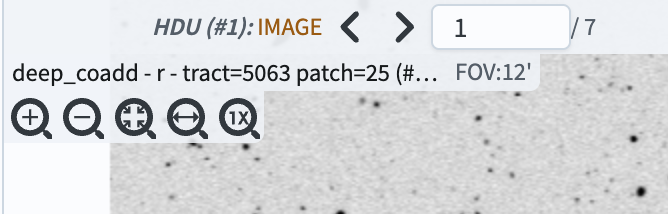
Figure 1: The buttons to cycle through image planes in Firefly. They appear above the displayed image.#
By default the “IMAGE” plane (HDU #1) will be displayed. By pressing the left and right arrow buttons, one can toggle through additional image planes that are associated with the image.
Advance to the third plane, the VARIANCE. Using the stretch drop down tool, change the image stretch to “Z Scale Linear”. The result should look like Figure 2.
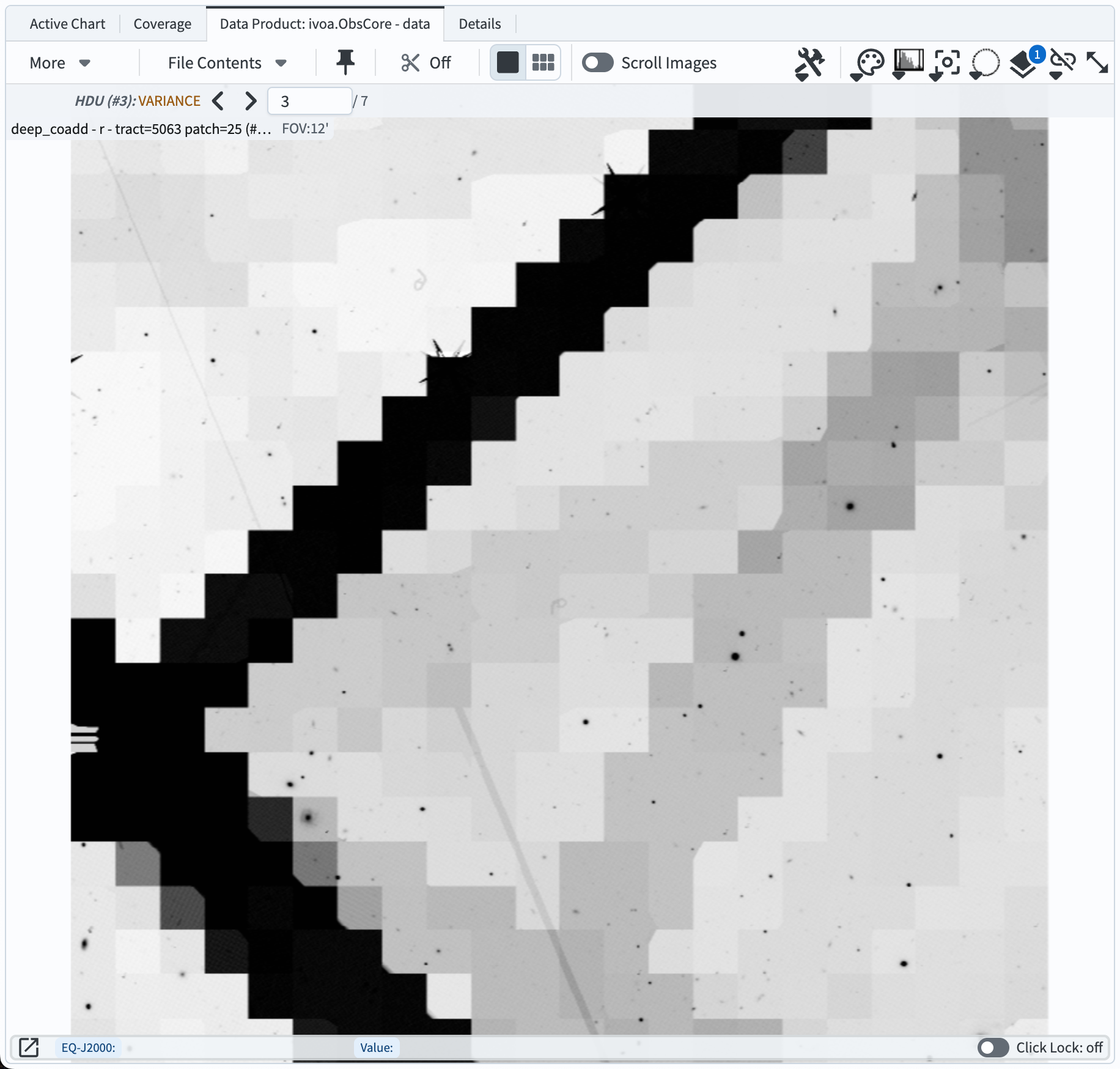
Figure 2: The VARIANCE image plane with “Z Scale Linear” stretch applied. Features corresponding to the size of cells are seen, showing where the noise properties change due to different numbers of input visit images contributing to different cells.#
The coadd image planes are:
IMAGE (HDU #1) – the deep coadd image.
MASK (HDU #2) – the mask plane showing pixels that have been masked for various reasons.
VARIANCE (HDU #3) – the variance plane corresponding to the pixel variance (in nJy2).
MASK_FRACTION (HDU #4) – the fraction of input visit images that were masked.
NOISE_REALIZATION (HDU #5) – a noise realization to be used for shear measurements.
BACKGROUND/FIELDS/PRETTY/DATA (HDU #10) – the difference between the deep coadd background and the “pretty coadd” background. Restoring this will roughly reproduce the “pretty coadds” that are used in the HiPS maps.
BACKGROUND/FIELDS/OBJECT/DATA (HDU #11) – the background that was subtracted from the deep coadd image.
Notice that the background images are binned to lower resolution than the full images.
3. Change the orientation of the image. Toggle the image plane view to return to the original deep coadd image. Click the “Tools” drop-down and then the “rotate image” tool (labeled “A” in Figure 3) in the “Rotate/Flip” portion of the Tools menu. Rotate the image to an angle 135 degrees East of North by either using the slider or manually entering 135 in the box. The result should appear as in Figure 4.
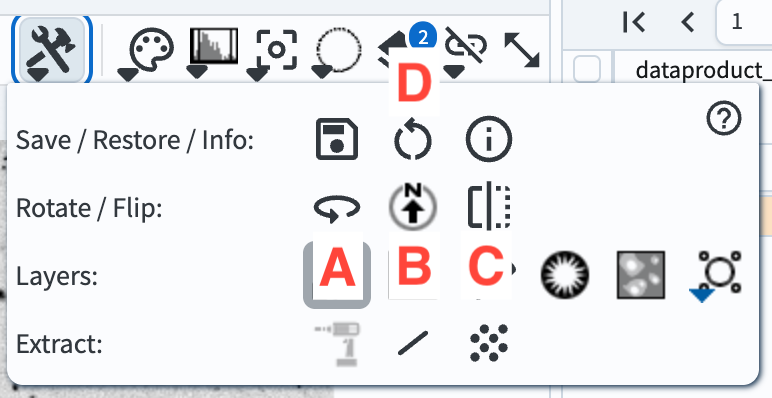
Figure 3: The Tools drop-down menu. Labeled buttons are tools to (A) rotate the image by a specified angle, (B) rotate the image so that North is up, (C) flip the image across the Y axis, and (D) restore the display to the defaults.#
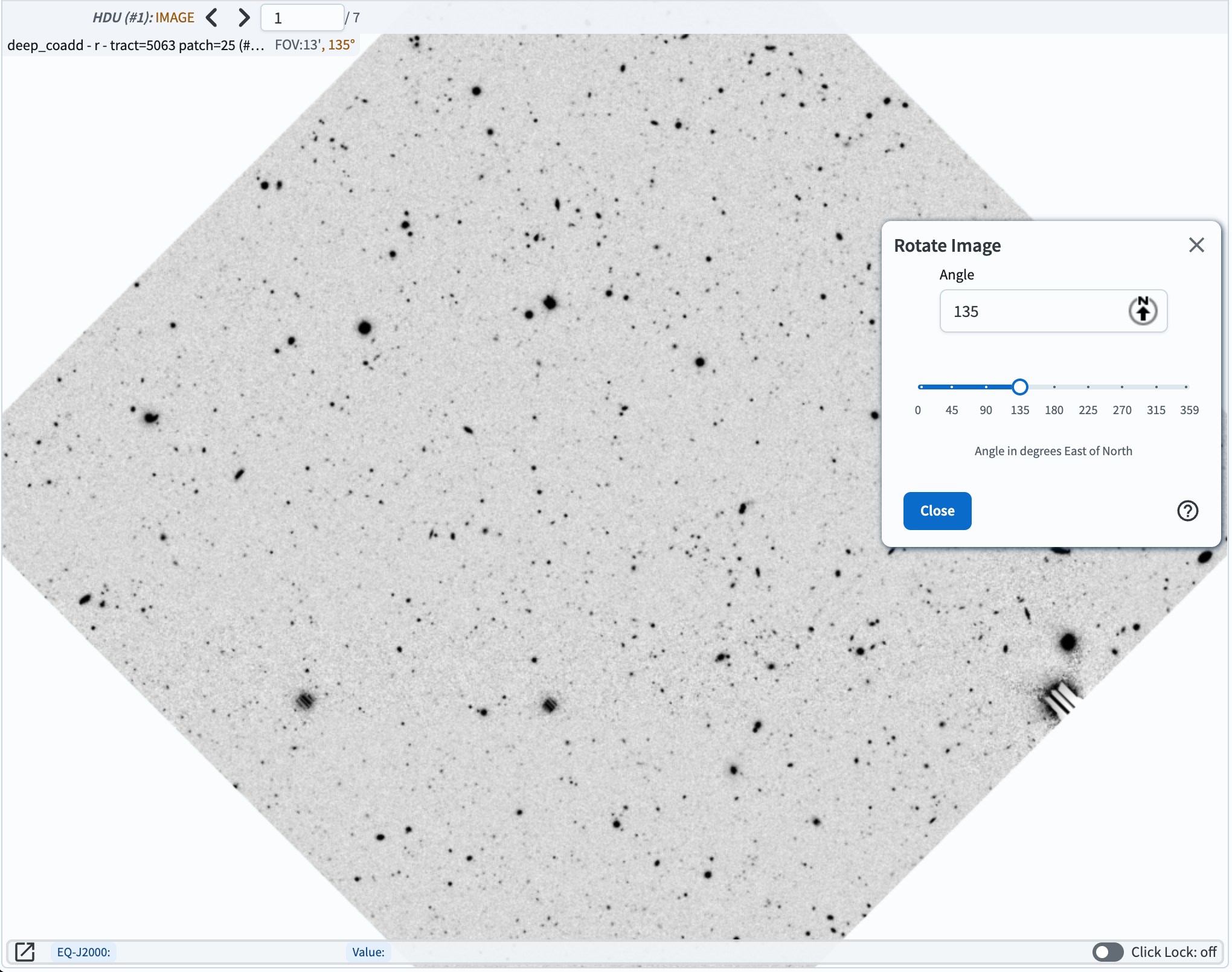
Figure 4: A deep coadd image that has been rotated to an angle of 135 degrees East of North, as can be seen in the inset interface to the image rotation tool.#
To restore the image to its original orientation with North up and East to the left, click the button with an up arrow pointing to a letter “N” (labeled “B” in Figure 3).
Before clicking the button to “flip” the image on the Y axis, first select the “North/East” compass from the “Layers” menu. Now click on the “flip” button (labeled “C” in Figure 3) to flip the image in the X direction (i.e., flip it about the Y axis). Notice that East is now pointing to the right, as in Figure 5.
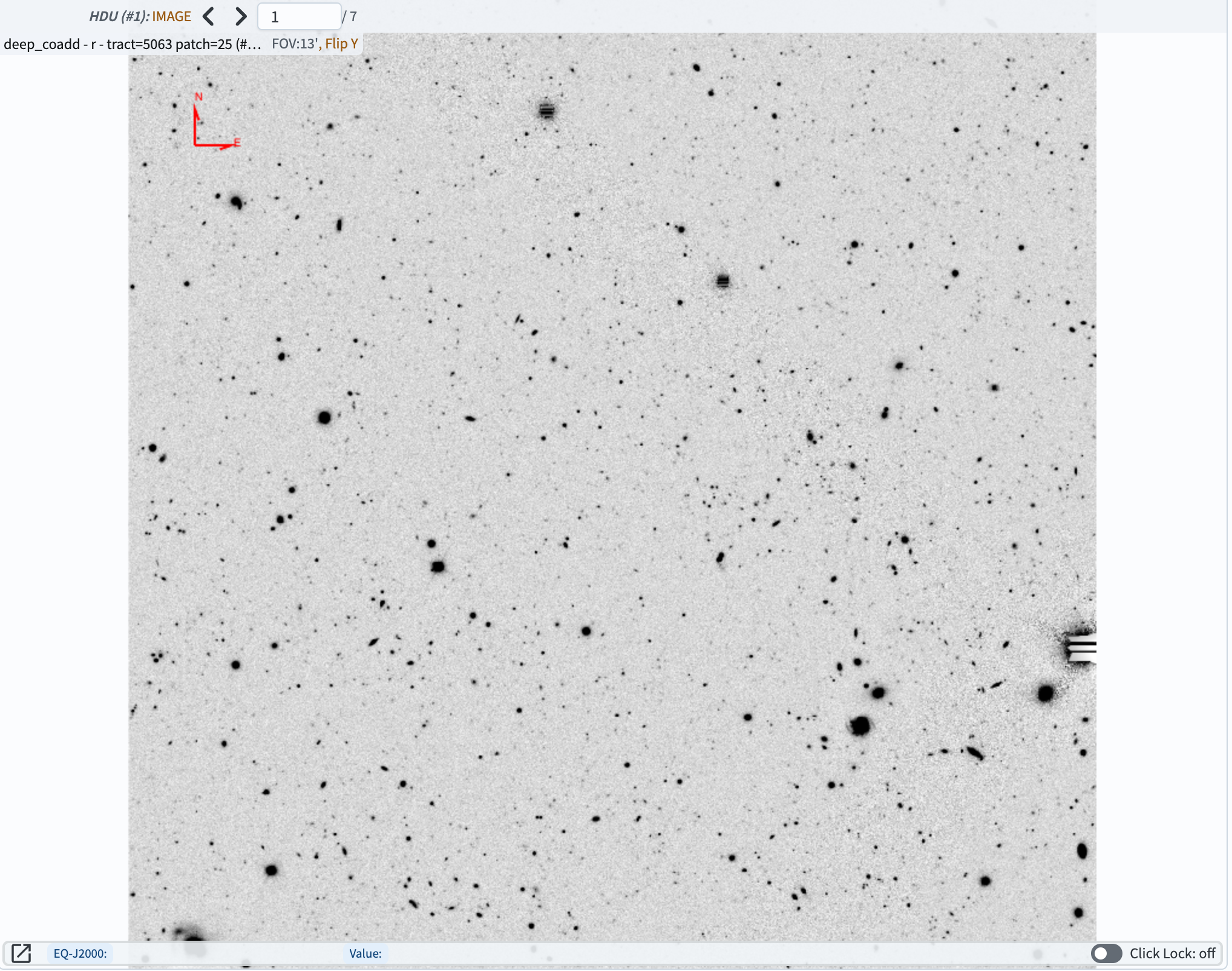
Figure 5: A deep coadd image that has been flipped in the X direction. The compass at upper left shows that East now points to the right, whereas the default display shows East to the left.#
To return to the original view, click the “Restore to the defaults” button in the Tools menu (labeled “D” in Figure 3).
4. Change the color map and image scaling. The color map used to display the image can be changed by clicking the “Color drop down” icon that looks like a painter’s palette (labeled “A” in Figure 6). Click the Color drop down and change the color mapping by clicking one of the options (as in Figure 7; the example selected there is the “plasma” colorbar). Notice that there is a “reverse” option to the right of each colorbar. Click one of these to get the “flipped” version of a color map.
The “Bias” and “Contrast” parameters can be manually adjusted using the sliders at the bottom of the Color drop down.
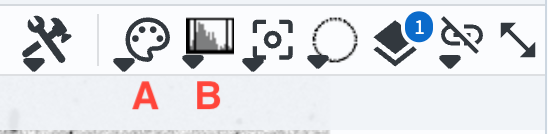
Figure 6: The buttons to access various tools menus. The drop-down menu for selecting color maps is labeled “A”, and the menu to control the image stretch is labeled “B”.#
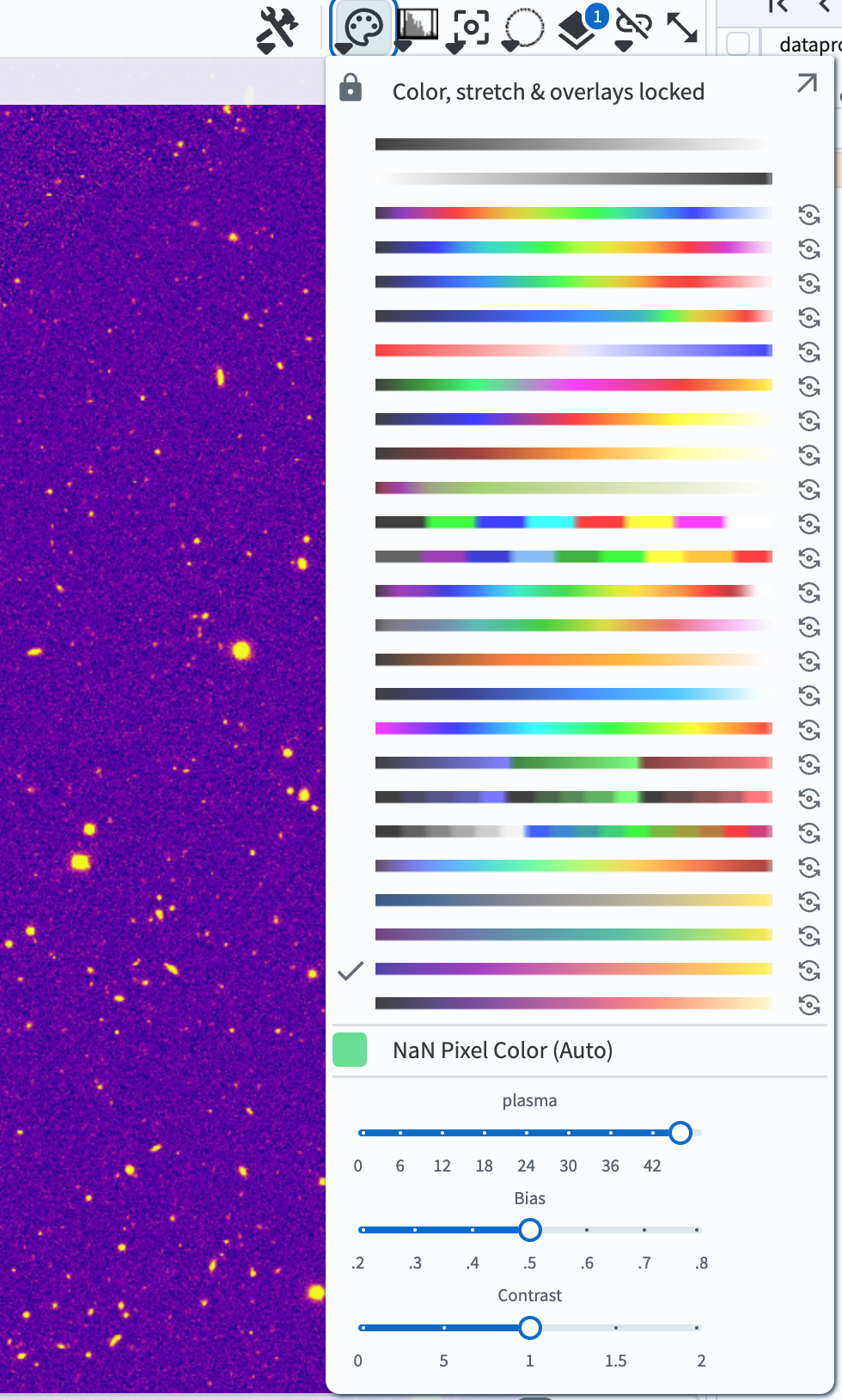
Figure 7: The Color drop-down menu, showing the various colormaps that are available. The “plasma” colormap is selected, and the underlying image is displayed with that colormap.#
The image “stretch” can be changed using the “Stretch drop down” icon that looks like a histogram plot (labeled “B” in Figure 6). Reset the colormap to the default (“Reverse Gray Scale”). Click the stretch drop down to reveal the options as seen in Figure 8.
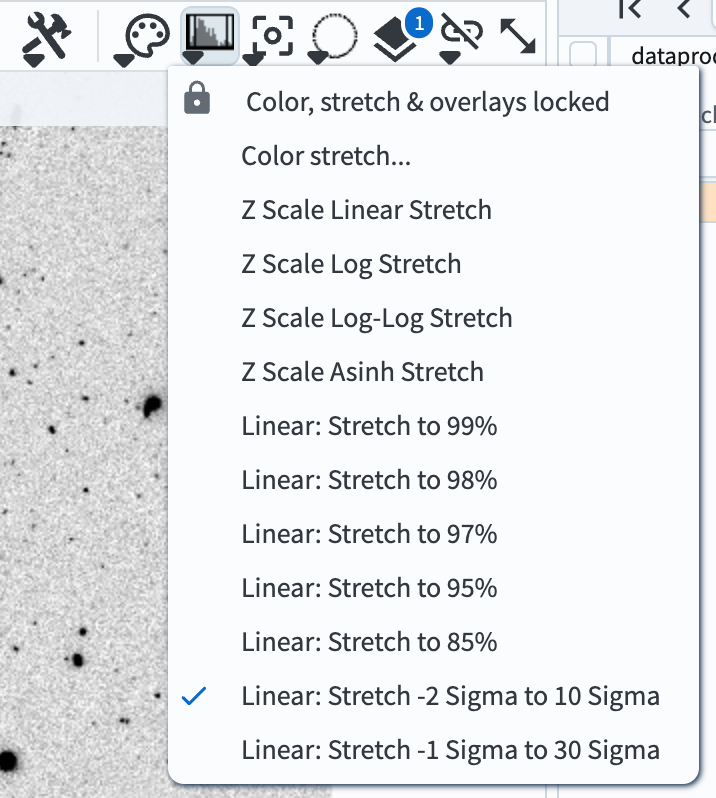
Figure 8: The color stretch drop down menu, showing 11 preset options as well as the “Color stretch…” choice for customizing the stretch.#
Change the stretch to “Z Scale Linear Stretch”. Then change it to “Z Scale Asinh Stretch”. The results should look like those seen in Figure 9.
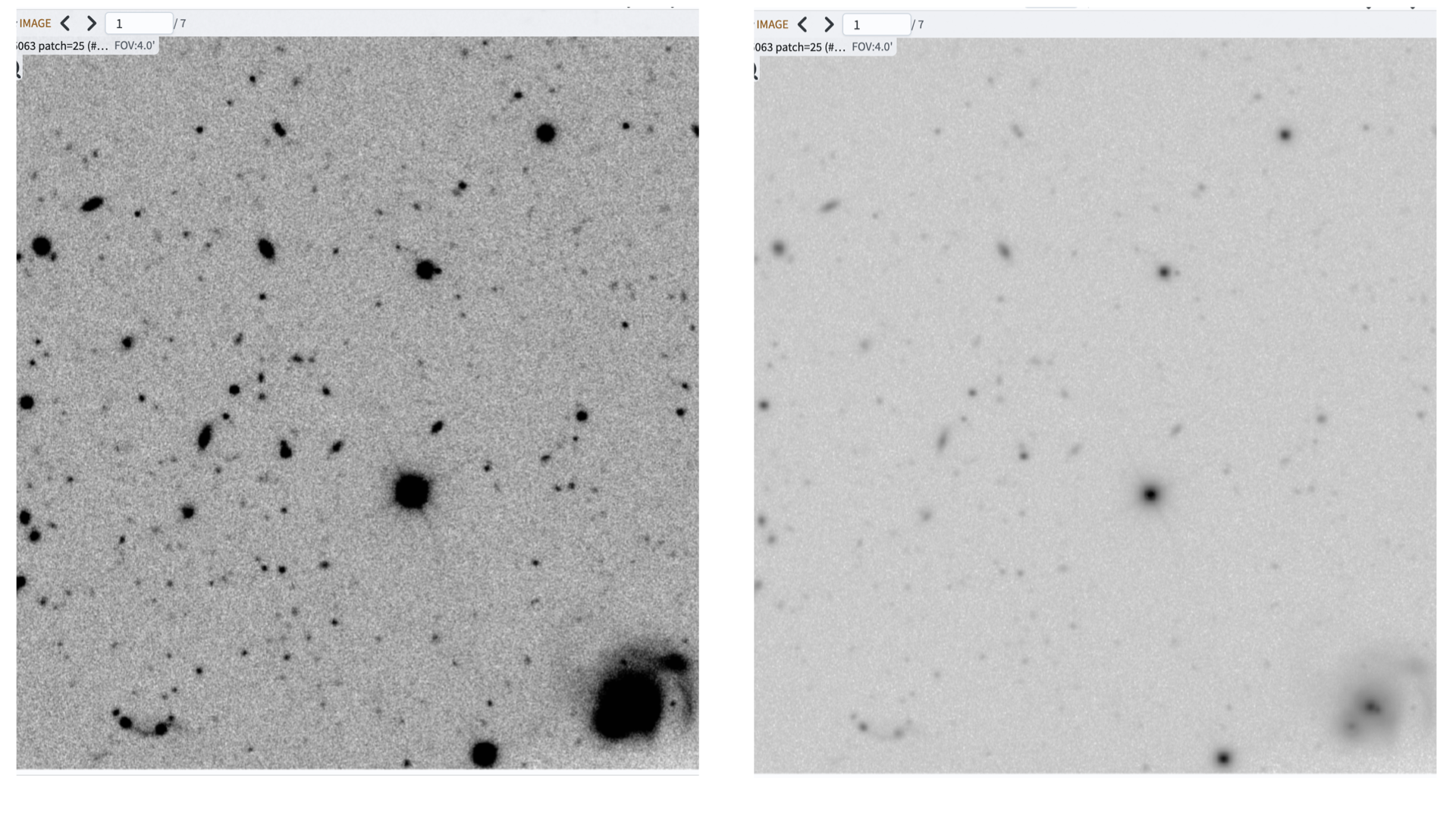
Figure 9: A zoomed-in region of the same image, but with different stretches applied. The image on the left uses the “Z Scale Linear” stretch, and the one on the right uses “Z Scale Asinh”.#
By clicking the “Color stretch…” button in the stretch drop down, the stretch parameters and type can be manually controlled using the widget that will appear.