

103.2. Query for catalog data with ADQL#
For the Portal Aspect of the Rubin Science Platform at data.lsst.cloud.
Data Release: Data Preview 2
Last verified to run: 2026-08-14
Learning objective: Prepare and execute an Astronomy Data Query Language (ADQL) query in the Portal.
LSST data products: Object table
Credit: Originally developed by the Rubin Community Science team. Please consider acknowledging them if this tutorial is used for the preparation of journal articles, software releases, or other tutorials. DOI: 10.11578/rubin/dc.20250909.20
Get Support: Everyone is encouraged to ask questions or raise issues in the Support Category of the Rubin Community Forum. Rubin staff will respond to all questions posted there.
An introduction to ADQL#
ADQL documentation includes more information about syntax, keywords, operators, functions, and constructing a query. ADQL is similar to SQL (Structured Query Langage).
A typical ADQL statement has at least three components:
SELECT <columns> FROM <catalog> WHERE <constraints>
where <columns> is a comma-separated list of the columns to return, <catalog> is the name of the catalog to retreive data from, and <constraints> imposes a restriction that only rows with column values that meet the constraints are returned.
For example, say there is a catalog called “mysurveydata” with 5 columns, “col1”, “col2”, and so on.
The following ADQL statement would return a table that has three columns, and as many rows as meet both restrictions in the WHERE statement.
SELECT col3, col4, col5 FROM mysurveydata WHERE col1 > 0.5 AND col5 < 10
In the RSP Portal Aspect, ADQL queries are submitted to the TAP (Table Access Protocol) service.
1. Go to the DP1 & DP2 Catalogs ADQL interface. Click the “Edit ADQL” button in the upper right corner to switch from the user interface to the ADQL interface.
2. Review the ADQL interface. Browse the available tables in the TAP service in the left sidebar. Scroll down to see examples of ADQL queries. The interface should look like Figure 1.
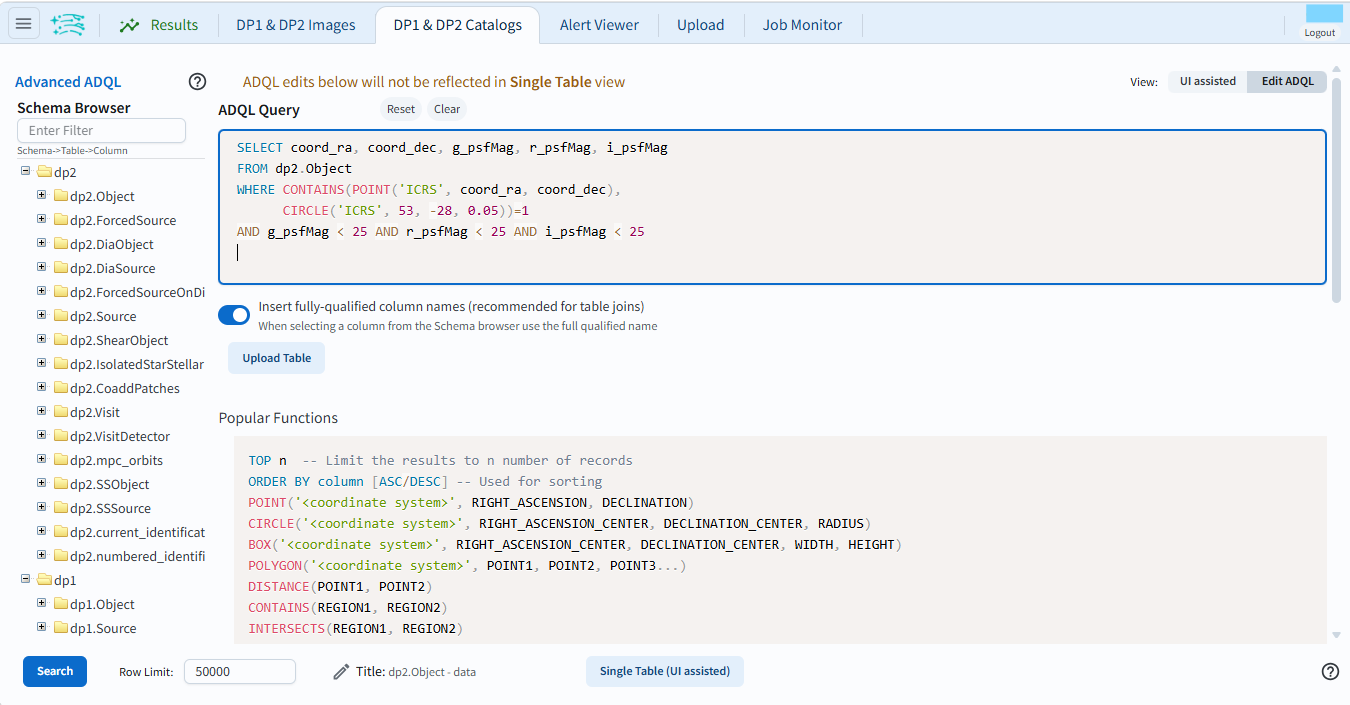
Figure 1: The ADQL interface.#
3. Enter the ADQL statement in the box. The following ADQL query selects the coordinates RA and Dec, and the gri PSF magnitudes for objects that are within a small circular region of the center of the ECDFS field (RA, Dec = 53, -28; radius = 0.05 degrees) and are brighter than 25th magnitude in all three filters. Copy the query and paste it into the “ADQL Query” box.
SELECT coord_ra, coord_dec, g_psfMag, r_psfMag, i_psfMag
FROM dp2.Object
WHERE CONTAINS(POINT('ICRS', coord_ra, coord_dec),
      CIRCLE('ICRS', 53, -28, 0.05))=1
AND g_psfMag < 25 AND r_psfMag < 25 AND i_psfMag < 25
4. Execute the ADQL query. Click the “Search” button at lower left. The query runs and returns 517 objects, shown in the data table along with their coordinates and gri PSF magnitudes.
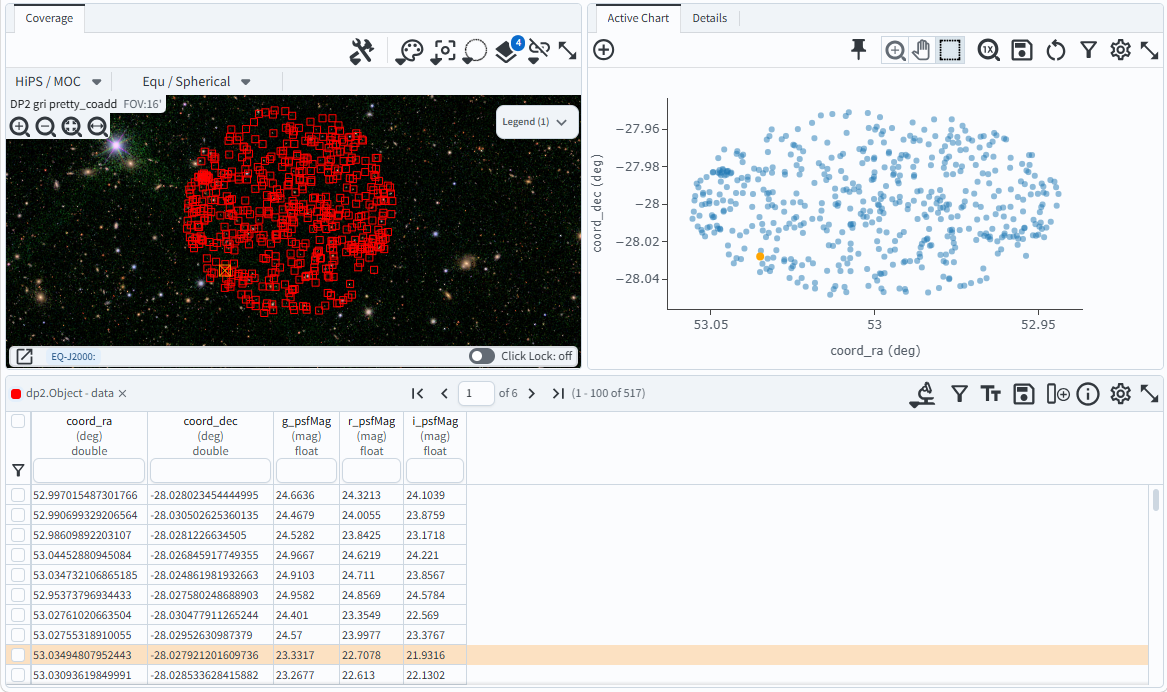
Figure 2: The default results view for the query.#