

305.1. Variable star light curves#
For the Portal Aspect of the Rubin Science Platform at data.lsst.cloud.
Data Release: DP2
Last verified to run: 2026-10-23
Learning objective: Extract and plot a light curve of a known variable star.
LSST data products: DiaObject, ForcedSourceOnDiaObject
Credit: Originally developed by the Rubin Community Science team. Please consider acknowledging them if this tutorial is used for the preparation of journal articles, software releases, or other tutorials. DOI: 10.11578/rubin/dc.20250909.20
Get Support: Everyone is encouraged to ask questions or raise issues in the Support Category of the Rubin Community Forum. Rubin staff will respond to all questions posted there.
1. Execute an ADQL query for a light curve. Log in to the Portal Aspect, select the “DP1 & DP2 Catalogs” tab and click on “Edit ADQL” at upper right. Enter the following ADQL statement and click “Search” at lower left. This query will return all forced photometry measurements for a known variable star from Gaia, at coordinates (RA, Dec) = (226.7244283498404, -40.30405425755786) degrees, within a 0.5-arcsecond matching radius.
SELECT diaobj.ra, diaobj.dec, diaobj.diaObjectId, fsodo.visit, fsodo.band,
       fsodo.psfDiffFlux, fsodo.psfDiffFluxErr,
       fsodo.psfFlux as psfFlux, fsodo.psfFluxErr,
       scisql_nanojanskyToAbMag(fsodo.psfFLux) as mag,
       fsodo.pixelFlags_saturatedCenter, fsodo.invalidPsfFlag,
       fsodo.psfFlux_flag,
       vis.expMidptMJD
FROM dp2.DiaObject as diaobj
JOIN dp2.ForcedSourceOnDiaObject as fsodo ON fsodo.diaObjectId = diaobj.diaObjectId
JOIN dp2.Visit as vis ON vis.visit = fsodo.visit
WHERE CONTAINS(POINT('ICRS', diaobj.ra, diaobj.dec),
               CIRCLE('ICRS', 226.7244283498404, -40.30405425755786, 0.5/3600)) = 1
AND fsodo.psfFlux_flag = 0
AND fsodo.invalidPsfFlag = 0
AND fsodo.pixelFlags_saturatedCenter = 0
The above query locates the star of interest in the DiaObject table, matches based on diaObjectId to the ForcedSourceOnDiaObject table to get the forced photometry measurements, then matches based on visit to the Visit table to get the observation times, expMidptMJD.
It also calculates magnitudes from the forced PSF fluxes, and applies the recommended flags for science-image fluxes from the documentation.
The query should return 878 results.
2. Plot a light curve (flux vs. time).
In the “Active Chart” panel, click the “+” to add a chart.
Choose a “Scatter” plot, then select psfDiffFlux vs. expMidptMJD to plot a light curve of the difference image flux (see Figure 1 for the plot parameters window).
Include the errors on the flux by toggling the “Y Error” button on, then selecting psfDiffFluxErr.
Enter X and Y labels, then click OK to display the plot.
Delete the default chart that plots RA, Dec coordinates.
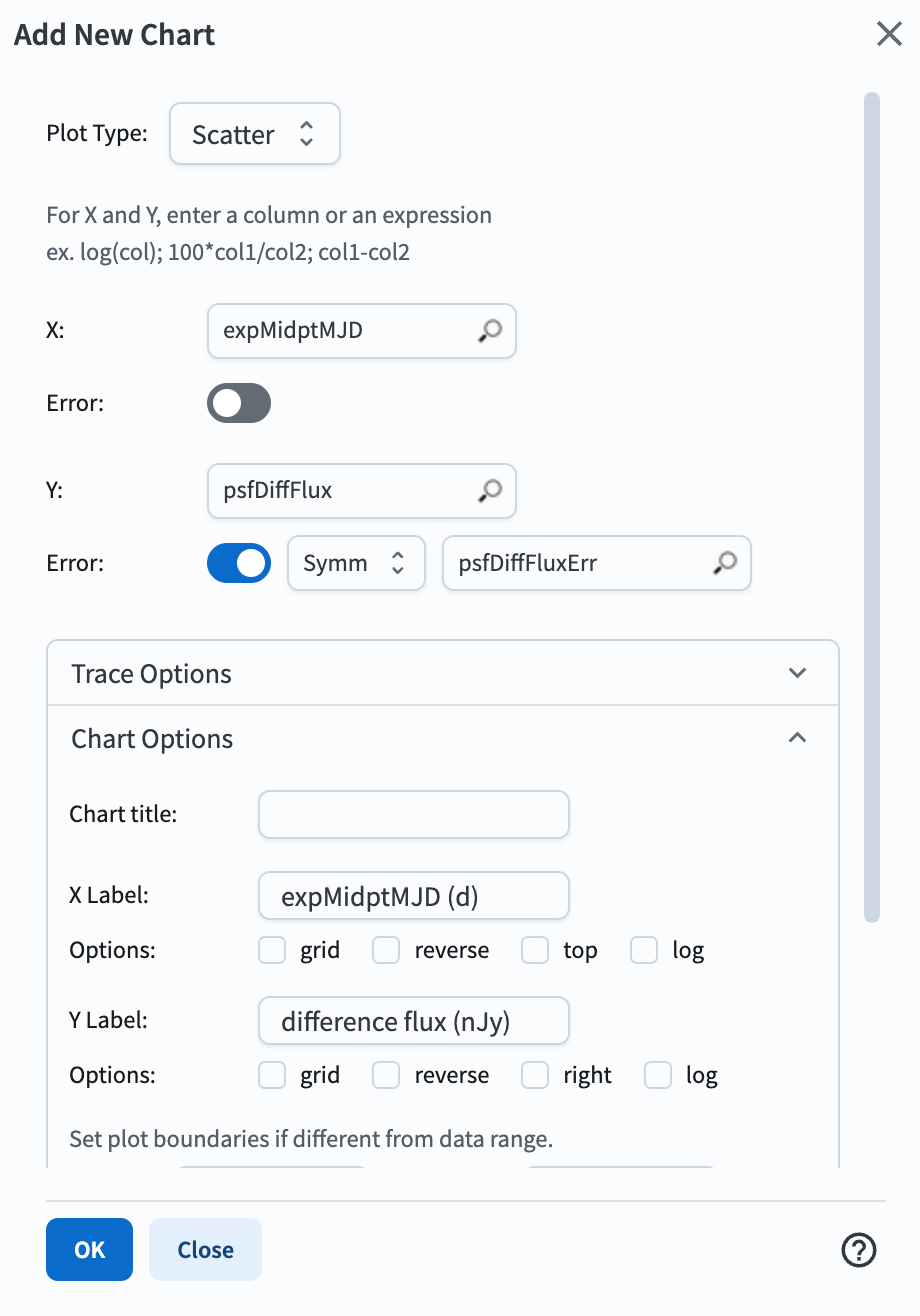
Figure 1: The interface to set plot parameters. It is configured to show “difference flux” and its errors on the y-axis, and “expMidptMJD” on the x-axis.#
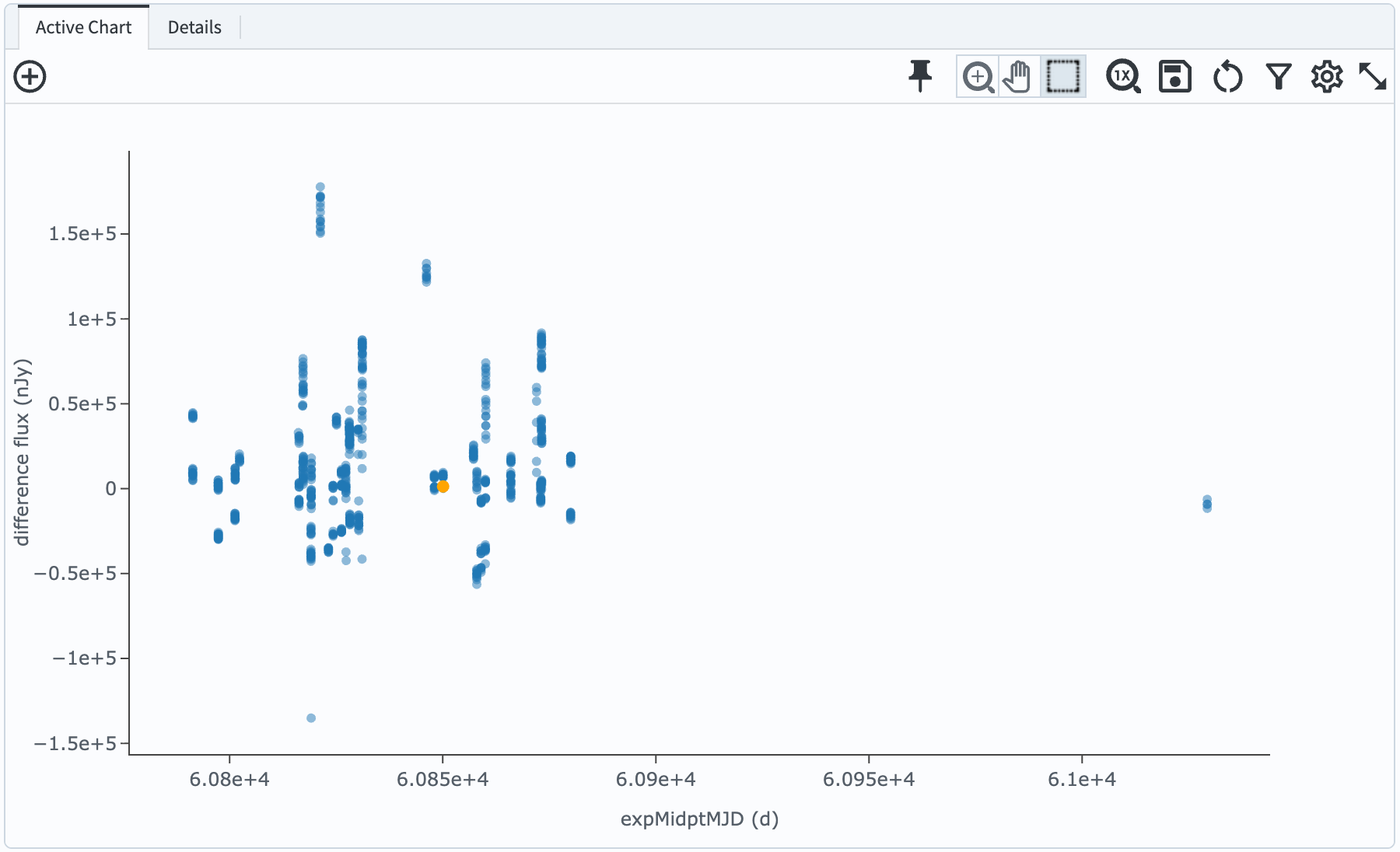
Figure 2: The lightcurve of the selected star, showing difference flux vs. the midpoint time of each exposure. The points are scattered about zero flux, indicating that the star sometimes is brighter, and sometimes fainter, than it is in the template image.#
The light curve should look like Figure 2. Fluxes can be positive or negative, as expected for a variable star that sometimes is brighter and sometimes fainter than it is in the template.
This light curve shows measurements from all 6 of the ugrizy bands. Use the filter at the top of the “band” column in the table to select only the r band. The table and plot should change to display only 164 points. Experiment with toggling different bands on and off.
3. Plot a phased light curve. The selected star was identified as an RR Lyrae variable via its light curve from Gaia DR3. Its ID is 6005347144427786624 in Gaia. This star is classified in Gaia DR3’s vari_rrlyrae table as an RRab-type variable with a period of 0.5180638410804721 days.
Select g-band measurements, then change the plot to display mag vs. expMidptMJD.
Reverse the y-axis so brighter magnitudes are toward the top of the plot.
To place each measurement into the RR Lyrae star’s phase, one must choose a reference measurement to use as the initial time.
Sort the table by expMidptMJD so that it is in ascending order (i.e., the earliest measurement appears first).
Use this earliest point as the reference time “t0”.
Create a new table column “tdiff” that calculates the difference between each measurement and this reference time, expMidptMJD-60791.369557566984 (where t0=60791.369557566984).
To calculate phase, calculate the number of periods that have passed since t0 as tdiff/period.
Then subtract off the number of full periods that passed from that number using the floor function, such that phase = (tdiff/0.5180638410804721)-floor(tdiff/0.5180638410804721), where period=0.5180638410804721 is the known period.
Change the existing plot to show g magnitude vs. phase. This phased light curve should look like Figure 3.
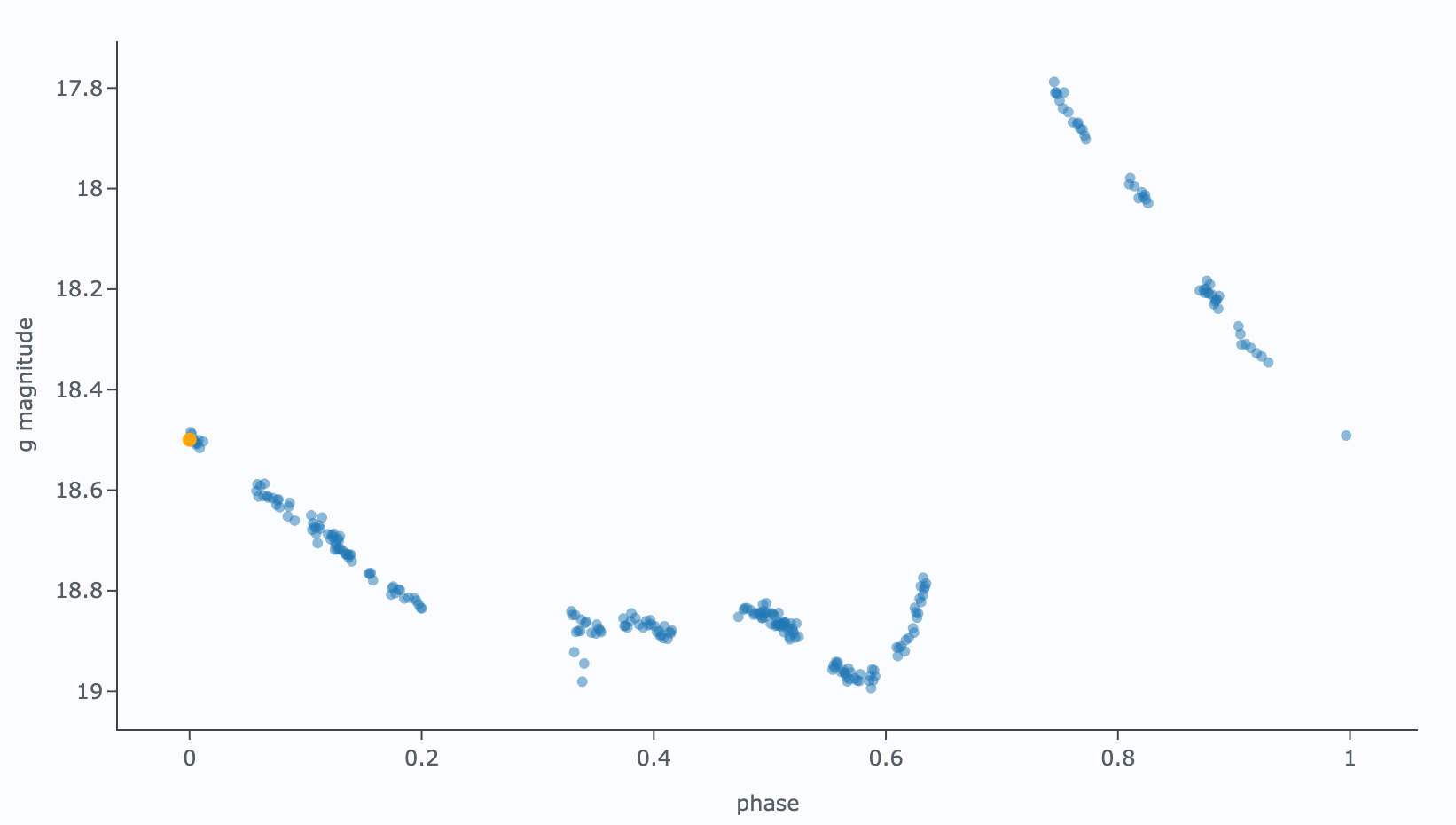
Figure 3: The light curve of the selected star with measurements placed into their correct phase within the star’s variability period. Brightnesses are plotted as magnitudes, showing a variability amplitude of +/-0.6 magnitudes.#
4. Plot a phased light curve in all bands. Clear the selection on g-band so that measurements in all 6 filters are visible. Open the plot parameters menu, and change the selection in “Group by” to “band”, then change the y-axis label to “magnitude”, as in Figure 4.
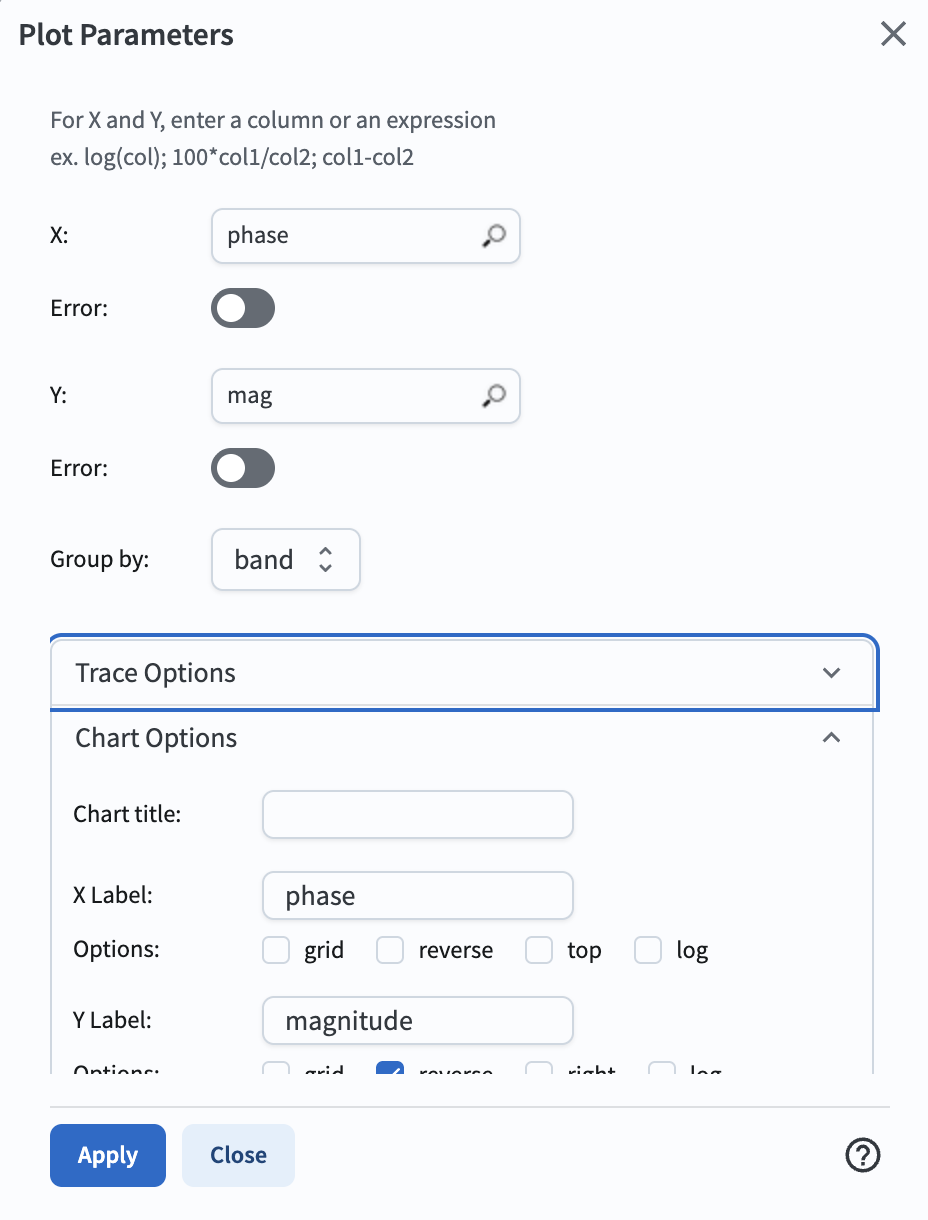
Figure 4: The plot parameters window with “band” selected under the “Group by” option and the y-axis label set to “magnitude.”#
The “group by” functionality will color-code the points by band so that each band’s light curve can be identified in a single plot. In this tutorial’s example, there is a single outlier point at nearly 24th magnitude that causes the y-axis range to be zoomed out very far. Using the zoom tool, drag your mouse to select the area from roughly 17.7-20.1 in magnitude. The resulting plot should look like Figure 5.
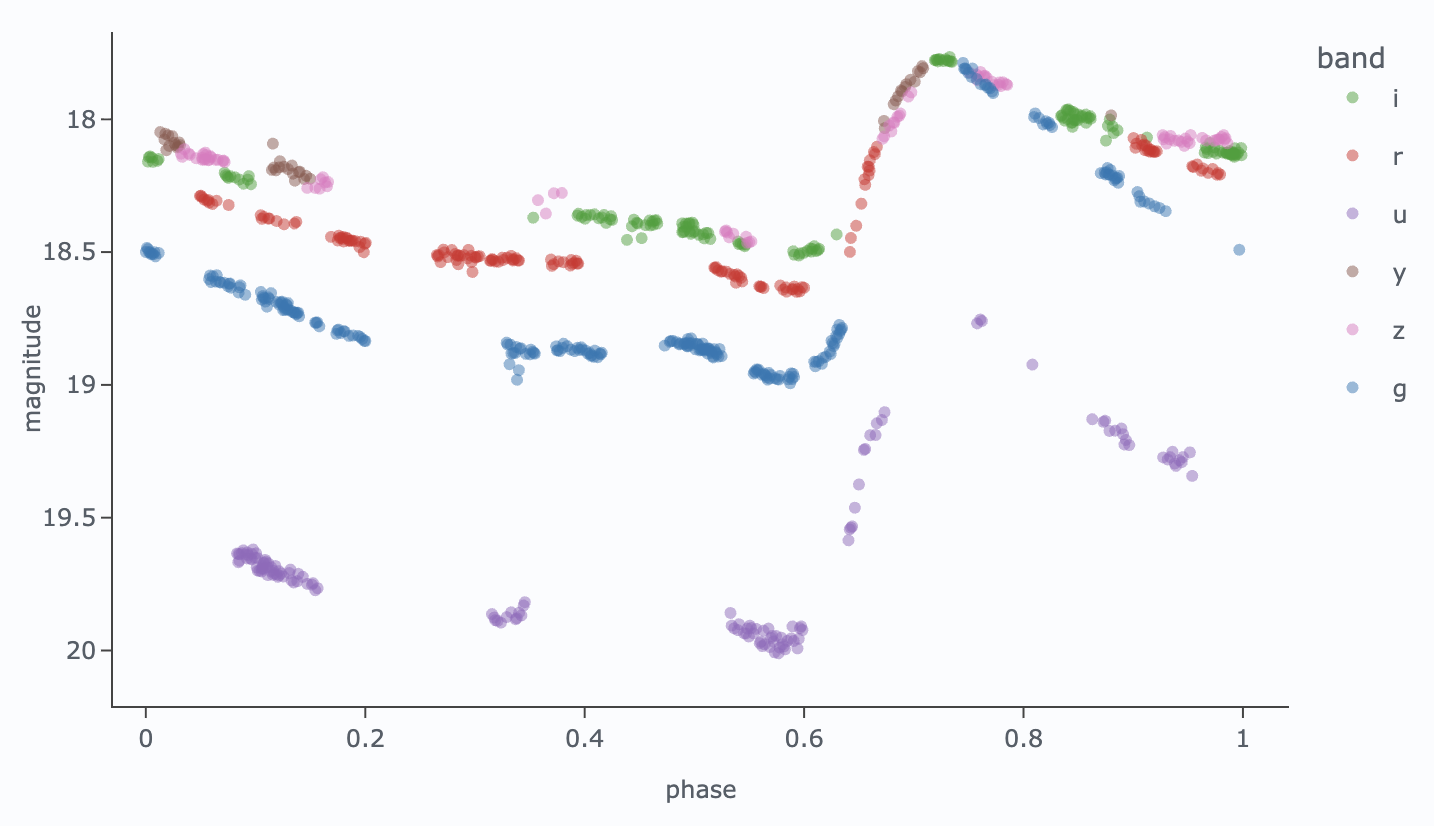
Figure 5: The light curve of the selected star with measurements placed into their correct phase within the star’s variability period. Brightnesses are plotted as magnitudes, showing a variability amplitude of +/-0.6 magnitudes. Measurements are color-coded by the band in which they were obtained.#